
Integrations
Facebook Product Catalog Integration
Learn how to create a Facebook product catalog using your ShedsForSale CSV product feed via Facebook Commerce Manager.
Prerequisites
Before you begin, make sure you have:
- A Facebook Business Manager account
- Access to Commerce Manager
- A CSV product feed from your ShedsForSale account. You must click the generate button to activate your CSV product feed URL. (available in your API tab)
Step 1: Create a Catalog
Navigate to Commerce Manager
- Go to Commerce Manager
Start Creating Your Catalog
- Click + Add Catalog
Choose Your Catalog Type
For local businesses with physical locations:
- Choose Local Products or Services, then click Next
- Select Local Products, then Next
- Select your Item Location, then Next
- Enter a name for your catalog and click Create
For online-only businesses:
- Choose Online Products, then Next
- Enter a name for your catalog and click Create
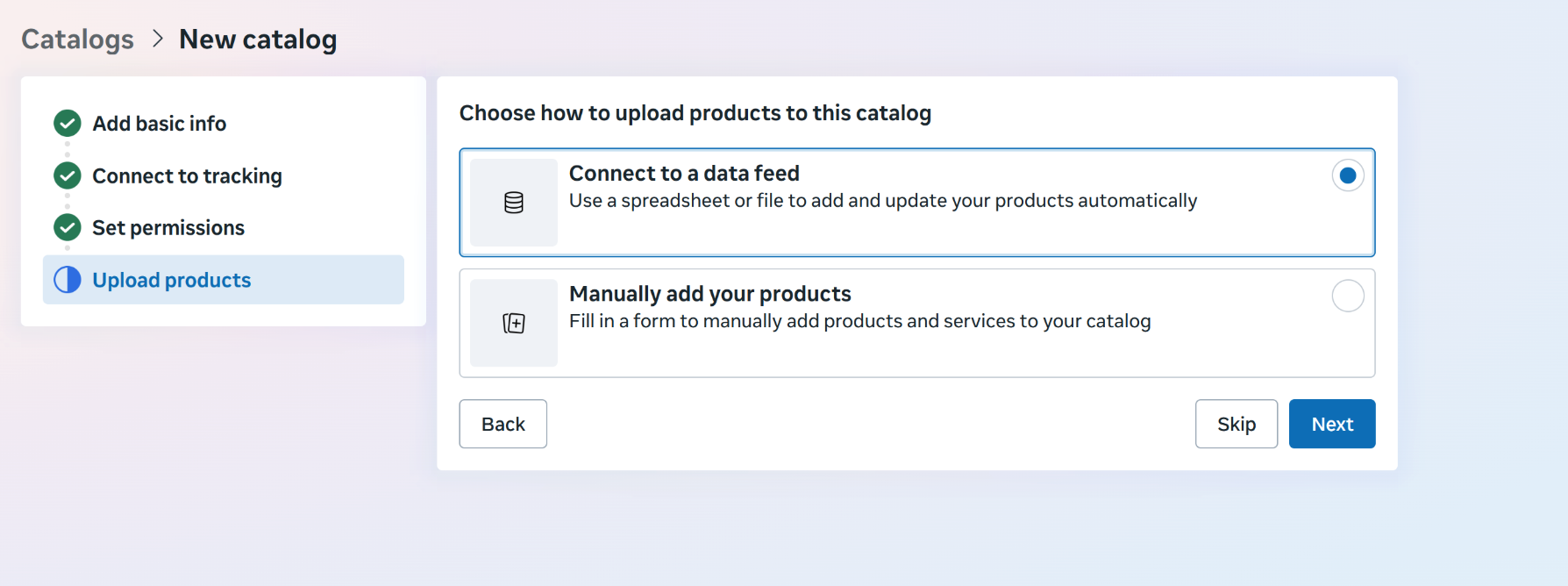
Step 2: Add Products Using a Data Feed
- Open your new catalog
- Go to Data Sources
- Choose Use Data Feeds, then click Next
Step 3: Upload Your CSV Feed
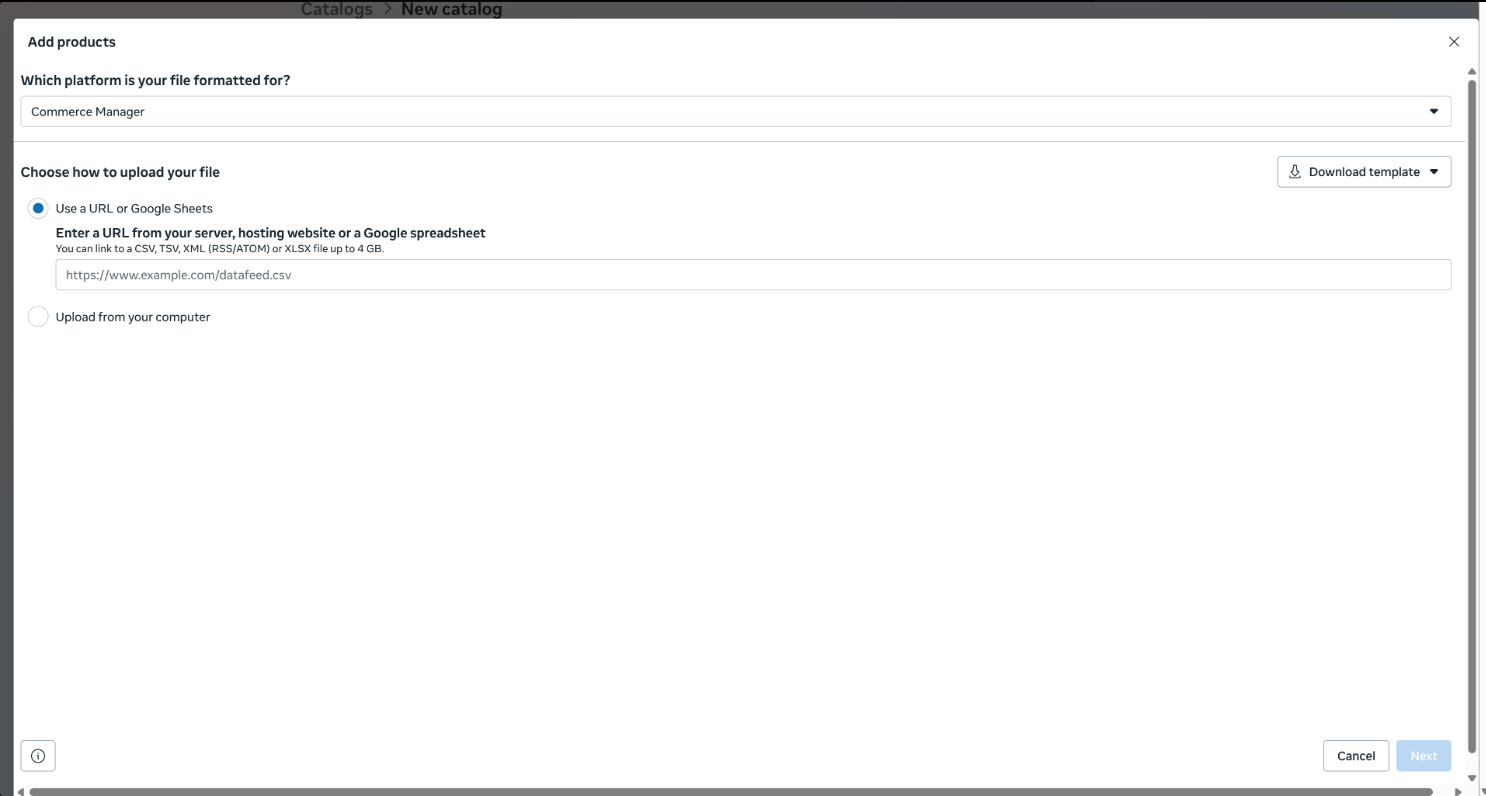
Select Platform Format
- Choose Commerce Manager when asked "Which platform is your file formatted for?"
Choose Feed Source
- Select Use a URL or Google Sheets
Enter Your Feed URL
- Enter your CSV URL from your ShedsForSale account API tab
- Click Next
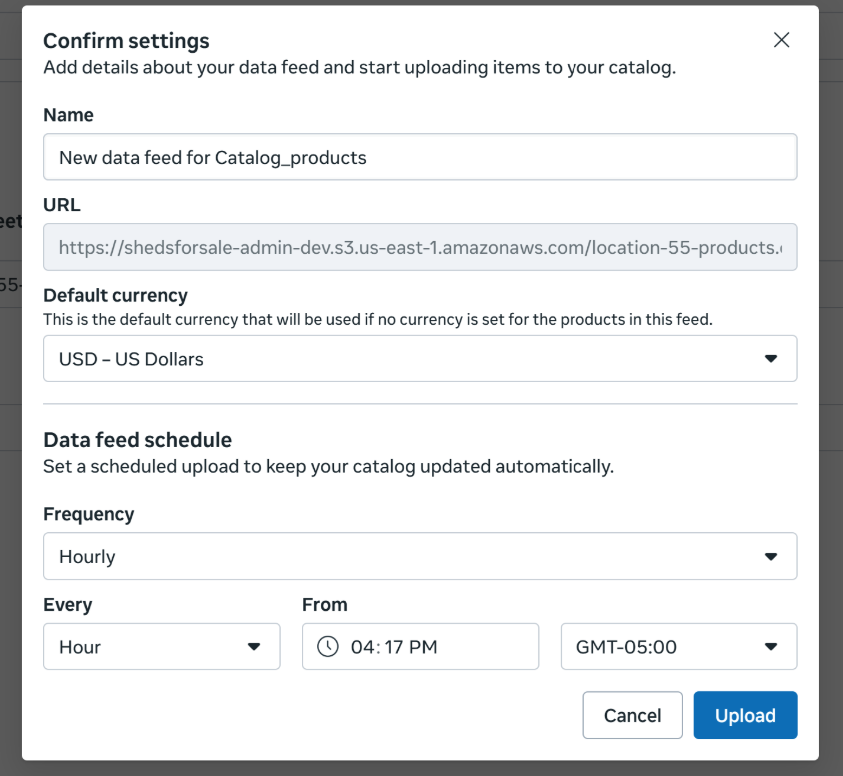
- Configure Feed Settings
- Enter a name for your data feed
- Select USD for default currency
- Choose your update frequency:
- Scheduled feed (daily or hourly recommended)
- Click Upload
Step 4: View Your Products
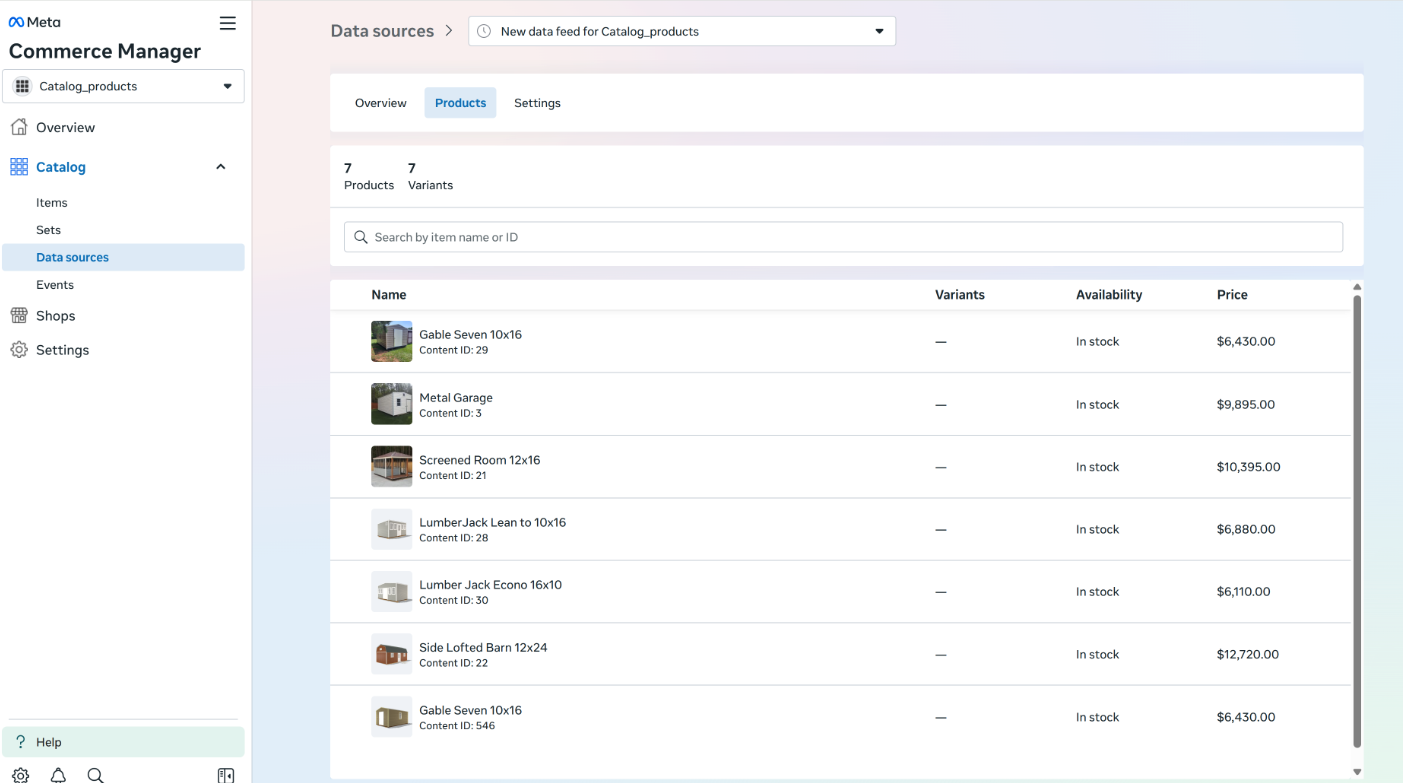
Wait for Processing
- Facebook will process the feed (may take a few minutes)
Check Your Products
- Click the Products tab next to Overview to view your imported products
Troubleshooting and Tips
Monitor Upload Status
To check upload status or view errors:
- Go to Catalog → Data Sources → Your Feed → View Report
Debug Feed Issues
- Use Facebook's Feed Debug Tool to identify and resolve issues with your product feed
- Common issues include missing required fields, invalid URLs, or formatting problems
Best Practices
- Update Frequency: Set up automatic updates (daily or hourly) to keep your catalog synchronized with your inventory
- Product Images: Ensure all products have high-quality images for better performance
- Product Descriptions: Use detailed, accurate descriptions to improve product discoverability
Need Help?
If you encounter any issues with your CSV feed or need assistance with the integration, please contact our support team at dev@shedsforsale.com.